If you spend any time in longarm and Pro-Stitcher Facebook groups, you've probably seen MOTT...
If MK Design Indexer (MKDI) suddenly won't open on your Windows 11 computer, you haven't done anything wrong, and MKDI isn't broken. A Windows security feature called Smart App Control is blocking it. It takes about one minute to turn it off, and then MKDI will work normally again.
This post explains what's going on in plain terms and walks you through the fix step by step.
Why Windows is blocking MKDI
Smart App Control is a newer Windows 11 feature that only lets a program run if Microsoft recognizes it. Large commercial software companies pay for a digital signature, which works like a sealed ID badge on the program. Windows checks for that badge, and if it isn't there, Smart App Control blocks the program.
MKDI is a small, specialized tool that we build in-house for our quilters. It doesn't have a digital signature yet, so Smart App Control treats it as unknown and stops it. This can start without warning after a Windows update, even if MKDI ran fine yesterday.
There's no way to make an exception for just one program. Smart App Control is either On or Off, so turning it off is the only way to run MKDI right now.
Is it safe to turn it off?
Yes, as long as you use common sense. Turning off Smart App Control removes one extra layer of protection, but your computer is still protected:
- Microsoft Defender antivirus keeps scanning for viruses and malware. Leave it on.
- Windows Firewall keeps protecting your network connection.
- SmartScreen still warns you about suspicious downloads and websites.
To stay safe:
- Only download MKDI directly from MK Quilts.
- Don't open programs or email attachments you weren't expecting.
- Keep Windows Update turned on.
How to turn off Smart App Control
- Click the Start button, type Windows Security, and open it.
- On the left side, click App & browser control.
- Under Smart App Control, click Smart App Control settings.
- Select Off.
- If Windows asks "Do you want to allow this app to make changes to your device?", click Yes.
- Close Windows Security and open MKDI again. If it's still blocked, restart your computer and try once more.
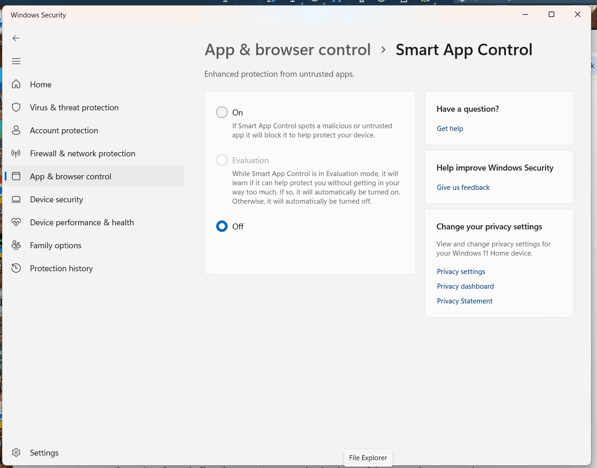
You'll know it worked when the Off circle is filled in on the Smart App Control screen.
If the Off option is grayed out or won't stay selected, email support@mkquilts.com and we'll walk you through it.
Seeing a different warning?
If you see a blue box that says "Windows protected your PC", that's a different feature called SmartScreen, and you don't need to change any settings for it:
- Click More info.
- Click Run anyway.
Windows may also mark a program file as "blocked" if it was downloaded from the internet. To clear that flag:
- Right-click the MKDI program file and choose Properties.
- At the bottom of the General tab, check the Unblock box.
- Click OK.
What's next
We plan to add a digital signature to MKDI in the coming year. Once it's signed, Smart App Control will recognize it and you won't have to change this setting anymore. We'll let you know when that update is ready.
After that, you can turn Smart App Control back on with the same steps, choosing On instead of Off. Recent Windows updates allow this without reinstalling Windows.
Questions or still stuck? Email us at support@mkquilts.com and we'll help you get MKDI running.