MK Design Indexer (MKDI) User Manual
MKDI keeps your Pro-Stitcher quilting patterns and your embroidery designs in one searchable library. It has been kept as simple as possible, but some advanced features take a little time to learn. The Help buttons inside MKDI bring you straight to the matching section of this manual.
MKDI does not include any designs. It reads the design files already on your computer, in the folders you tell it to watch. It will help you set up the free Pro-Stitcher designs in C:\Designs and build a tidy folder for the designs you buy.
In this manual, “patterns” and “designs” mean the same thing. MKDI was formerly called QPI (Quilt Pattern Indexer).
Installation
- Download the installer from the MKDI product page.
- Double-click the downloaded file and follow the prompts.
- When it finishes, double-click the MKDI icon on your desktop to start the program.
If you haven't licensed MKDI yet, the About window appears when the program opens. Your 14-day free trial starts the first time you install.
Updating to a newer version: download the latest installer and run it. It installs over the old version. Your settings and keywords are stored separately and are not touched.
↑ Back to topFree trial and licensing
MKDI runs for 14 days from installation with every feature unlocked. After that, it stops at the title window until you license it.
- Buy MKDI in the MK Quilts shop. One version covers both quilting and embroidery designs.
- We send you a link to the licensed download.
- Run it and install right over your trial. Your designs, keywords and notes stay put.
One license covers one user on all of their PCs. Install the same licensed download on each computer you use.
Already own QPI or an earlier MKDI? Upgrading to the current version, embroidery support included, is free. Email support@mkquilts.com for the download link.
The old QPI “Activator” program is no longer used.
↑ Back to topWhere MKDI finds designs
By default MKDI scans and indexes design files in two places:
C:\Designs, where Pro-Stitcher keeps its free Handi Quilter designs.- A
Designsfolder inside your Documents folder (C:\Users\<your name>\Documents\Designs), if you have one. The Purchased Folder and Open Pattern Zip features have replaced this older approach.
To add or remove folders, go to File > Settings. Embroidery users must add their embroidery folders here. Shortcuts (links) inside watched folders, including ones Pro-Stitcher Designer creates, are indexed too. Deleting a link never deletes the folder it points to.
The MKDI window
MKDI uses a familiar two-pane layout.
- Left pane: a folder tree with four top-level sections: Favorites, Pattern Folders, Keywords and Recent Searches.
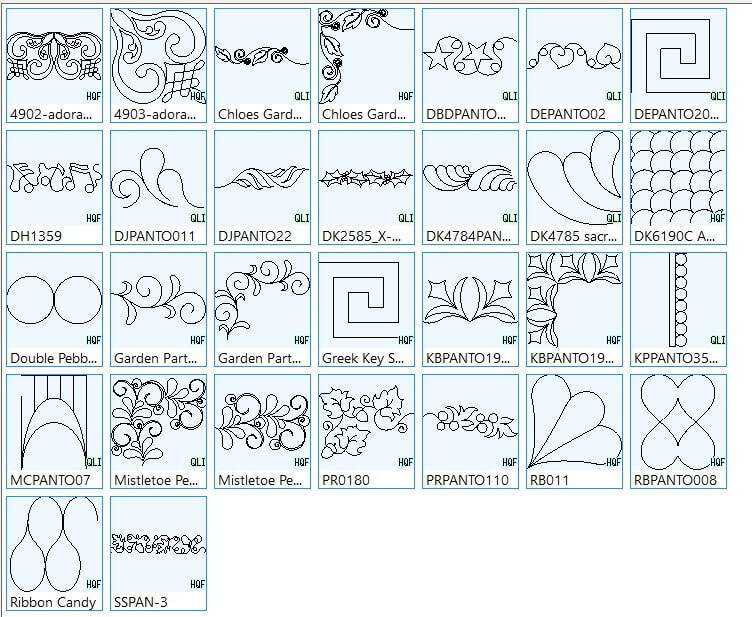
- Right pane: thumbnails of your designs, filtered by what you pick on the left or by the search box at the top.
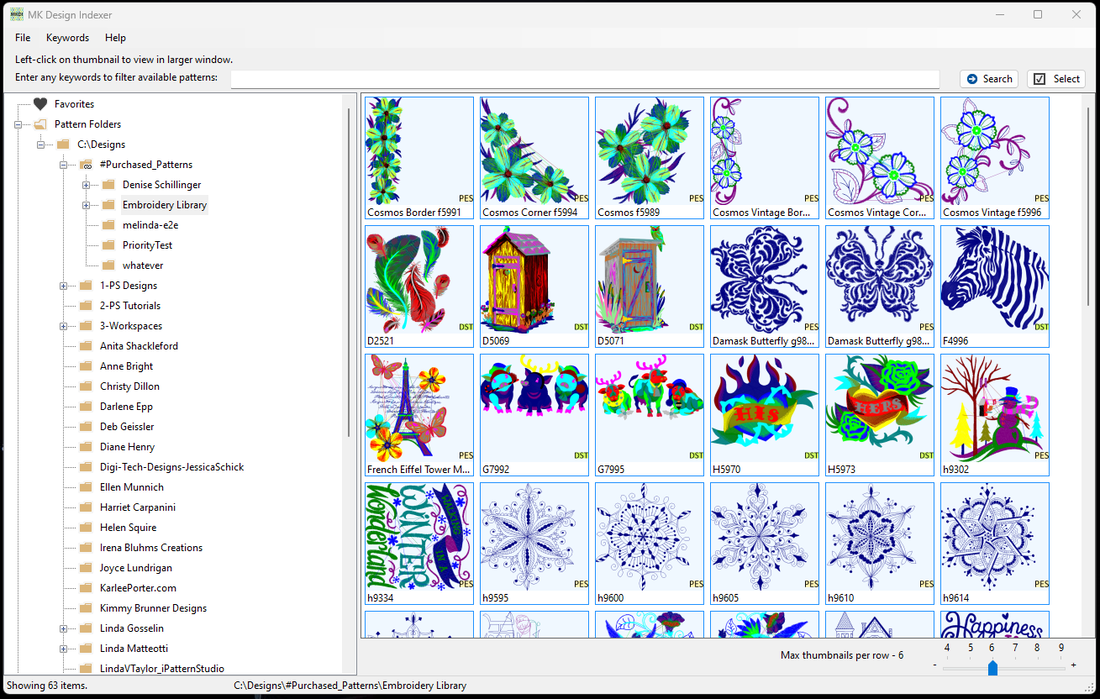
MKDI also includes file management tools: delete duplicates, move designs and folders within your watched folders, and Open in Explorer on most right-click menus. MKDI tries to protect you from mistakes, but use these with care.
↑ Back to topSelecting and searching
What you select in the left pane controls two things: what shows on the right, and where a search starts.
- Without a search, the right pane shows only the designs directly in the selected folder, not its sub-folders. An empty folder shows nothing.
- With a search, MKDI looks through every sub-folder of the selected folder. Each search is saved under Recent Searches with its starting folder. Selecting an old search shows its saved results; right-click it and choose refresh to run it again.
"", in the search box.Thumbnail size: use the slider at the lower right of the window to set how many thumbnails appear per row.
↑ Back to topClicks, taps and menus
Single click or tap
In the left pane, a single click or tap selects a folder. In the right pane, a single click or tap opens a preview window, which avoids double-click trouble on touch screens. You can open several previews at once.
The Select button at the top right switches the right pane between Open mode and Multi-select mode.
Right-click menus
Right-click (or touch and hold on a touch screen) to open a menu that depends on what's under the pointer. There are three:
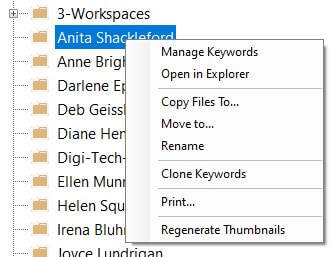
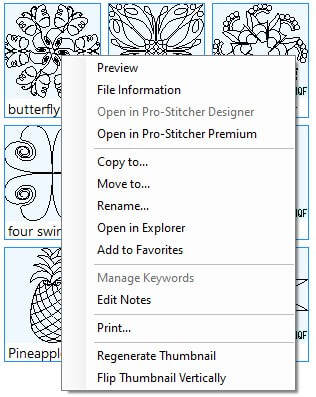
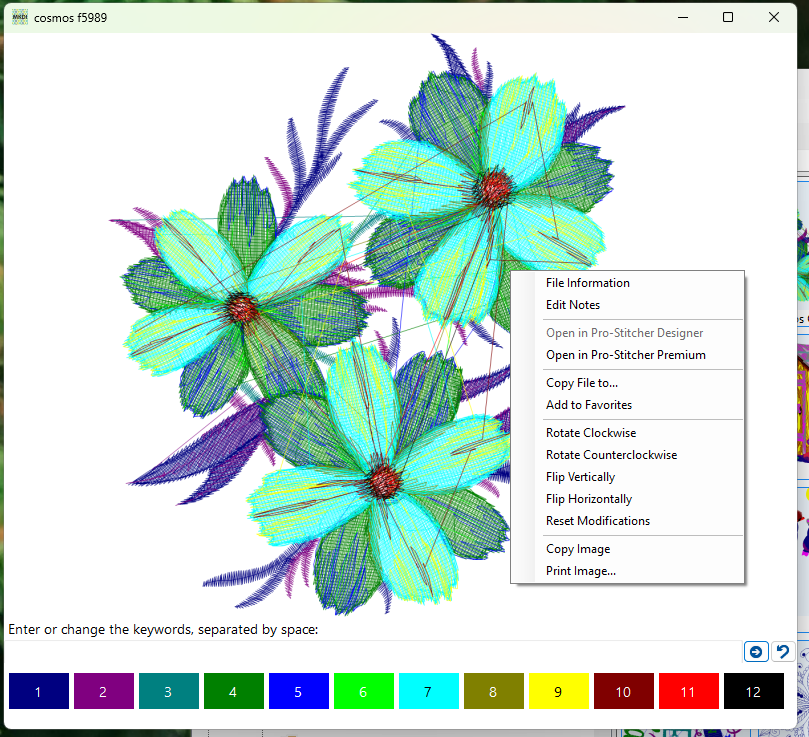
Tooltips appear when you hover over many items and give extra detail, such as where a file is stored.
↑ Back to topPreview windows
Open one or more preview windows, from any folders, then move and resize them to compare designs side by side. The right-click menu in a preview offers advanced options, including Copy File to for sending a design to a USB drive or a customer folder.
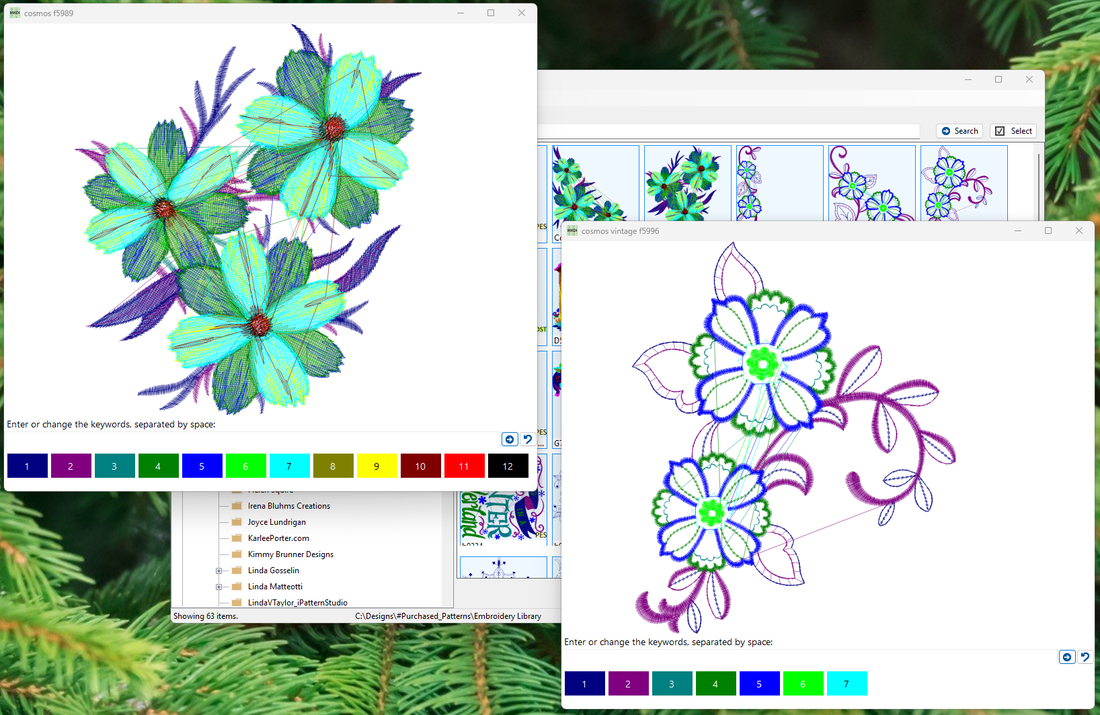
Add or change keywords in the line at the bottom of the preview. See Keywords for details. Embroidery previews also list the design's color count.
If a design doesn't display correctly, zip a copy of the file and email it to support@mkquilts.com so we can check it.
↑ Back to topPrinting
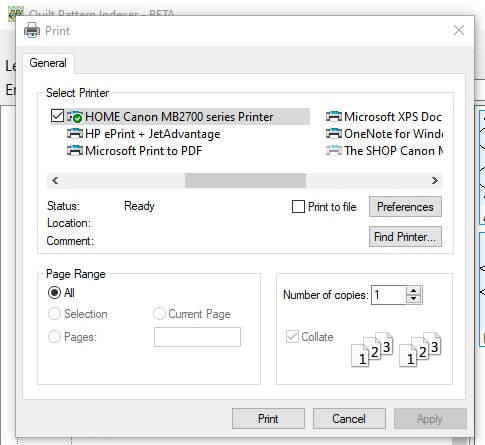
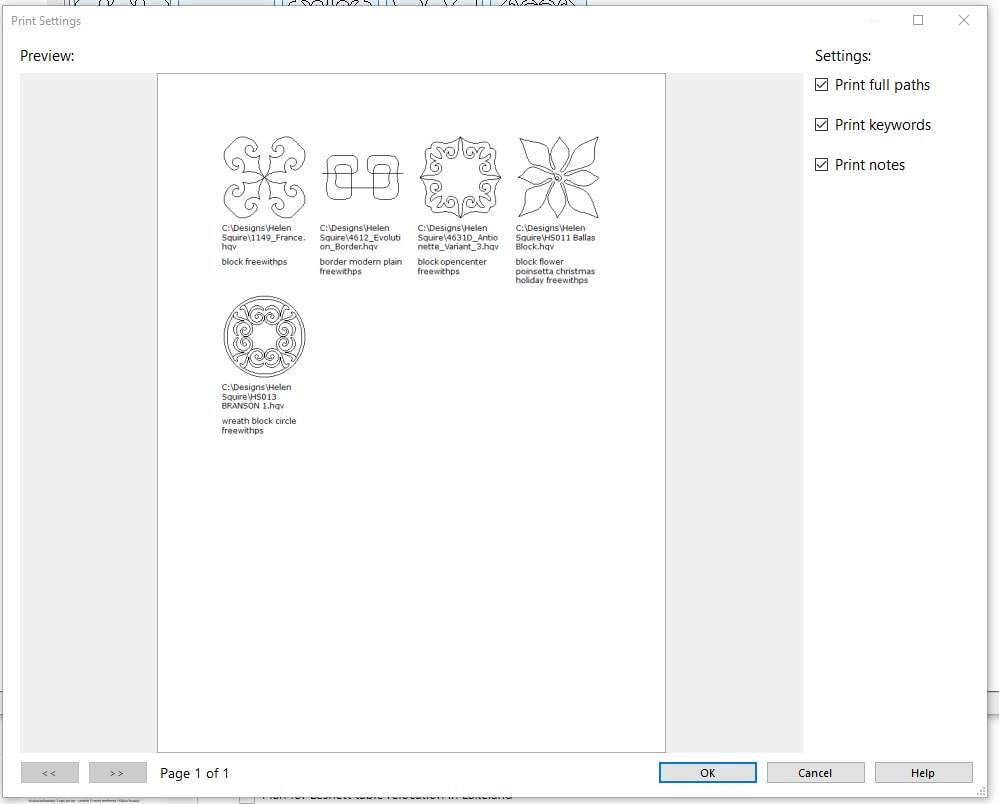
Select several designs or a folder, then choose Print from the right-click menu. After you press Print, a settings window shows a preview and lets you add any of these beneath each design:
- Full path names
- Keywords
- Notes
A file management plan
Most longarmers and embroiderers just want a simple, reliable way to keep the designs they buy. MKDI builds that in. It isn't the only way to organize your files, but it works well and keeps things easy.
Why Windows folders are confusing (optional reading)
Pro-Stitcher puts its included designs in C:\Designs. “C:” is your computer's internal drive and “Designs” is the folder.
Your own files normally live in your home folder, C:\Users\<your name>, which holds Documents, Pictures, Downloads and so on. File Explorer hides the home folder by listing those sub-folders under “This PC,” which confuses almost everyone. Phones, tablets and Macs hide this even more.
The short version: keep purchased designs in your Documents folder, because that's what backup tools usually protect. MKDI's Create Purchased Folder and Open Pattern Zip, both in the File menu, do this for you.
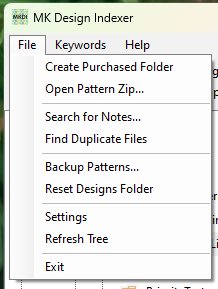
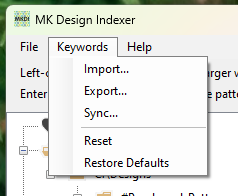
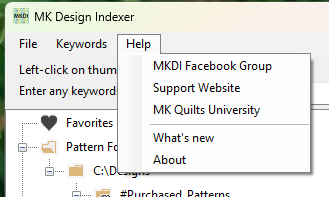
If your C:\Designs folder is already a mess, Reset Designs Folder lets you start fresh without losing anything.
Create Purchased Folder
File > Create Purchased Folder keeps the designs you buy separate from Pro-Stitcher's own designs:
- It creates a folder named
#Purchased_Patternsin your Documents folder. - It puts a link to that folder inside
C:\Designs, so it also appears there, at the top of the list.
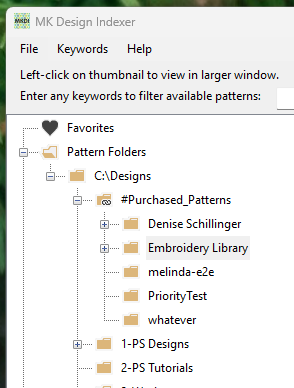
You normally do this once. Deleting the link does not delete the folder or your designs; run Create Purchased Folder again to restore it.
Open Pattern Zip (unpacking purchased designs)
Designers often include the same design in several formats. File > Open Pattern Zip opens a zip file and saves one copy of each design, in the format you rank highest in Settings, into #Purchased_Patterns. It processes every design in the zip at once and keeps the zip's folder structure, so you don't end up with duplicates.
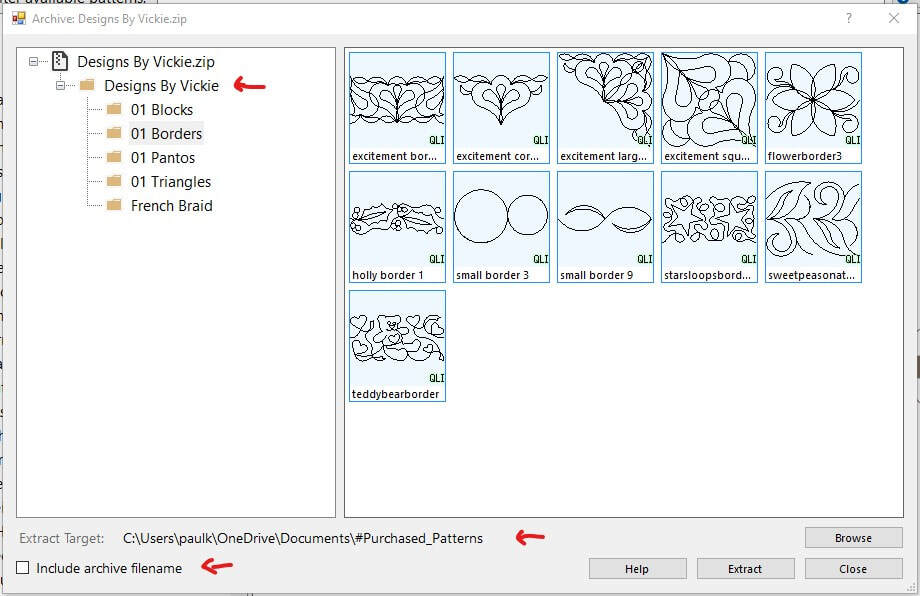
Most zips already contain a named folder, so you can leave Include archive filename unchecked. In this example, the “Designs By Vickie” folder is extracted into #Purchased_Patterns, and it also shows under C:\Designs\#Purchased_Patterns because of the link.
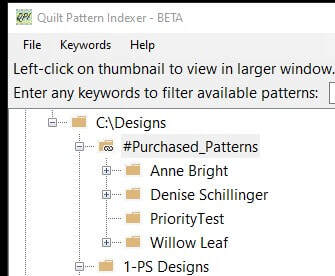
Right-click a folder to rename or move it. If something doesn't appear, use File > Refresh Tree.
↑ Back to topSearch in Notes
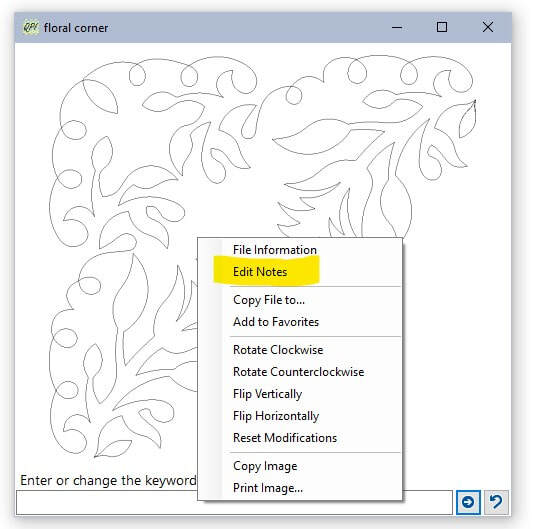
Right-click a design and choose Edit Notes to add free-form notes. Notes aren't part of normal searches and aren't written into the design file, but they travel with your keyword information when you export or sync.
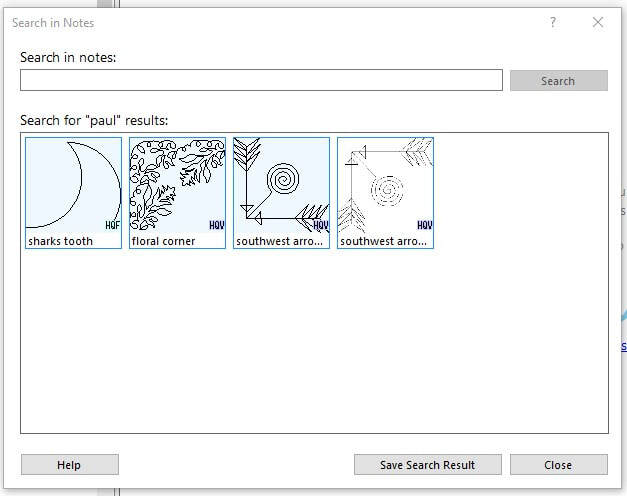
File > Search in Notes searches that text. To work with the results, press Save Search Results; the search then appears under Recent Searches in the left pane.
Find Duplicate Files
File > Find Duplicate Files compares the contents of files, not their names (see Hash vs. file name). Two different designs both named “corner borders” are not duplicates; the same design saved under two names is.
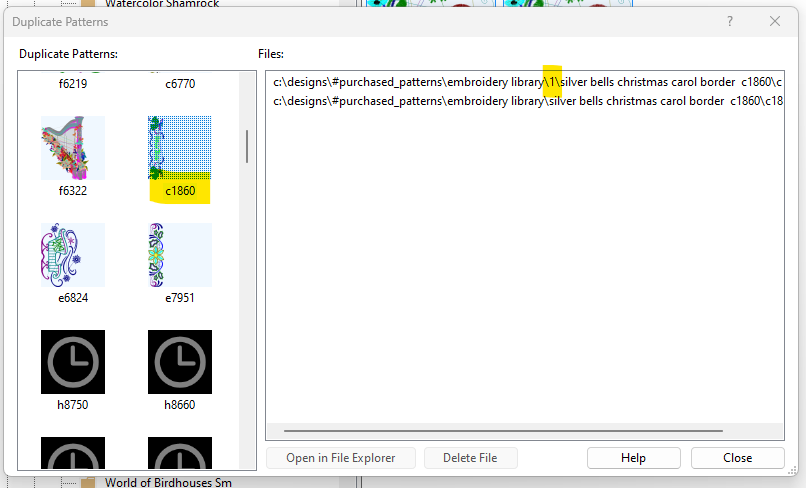
Select a file and press Open in File Explorer, or Delete File to remove it permanently. You'll be asked to confirm.
A clock icon means MKDI hasn't drawn that thumbnail yet. Thumbnails are created the first time a design is viewed, to keep the program fast.
↑ Back to topBackup Patterns
File > Backup Patterns copies all your designs into a folder named Patterns Backup (<date>) wherever you choose. Save it to a USB drive or network drive so a computer failure can't take it. Your keywords are exported into the same folder as keywords.qpi.json.
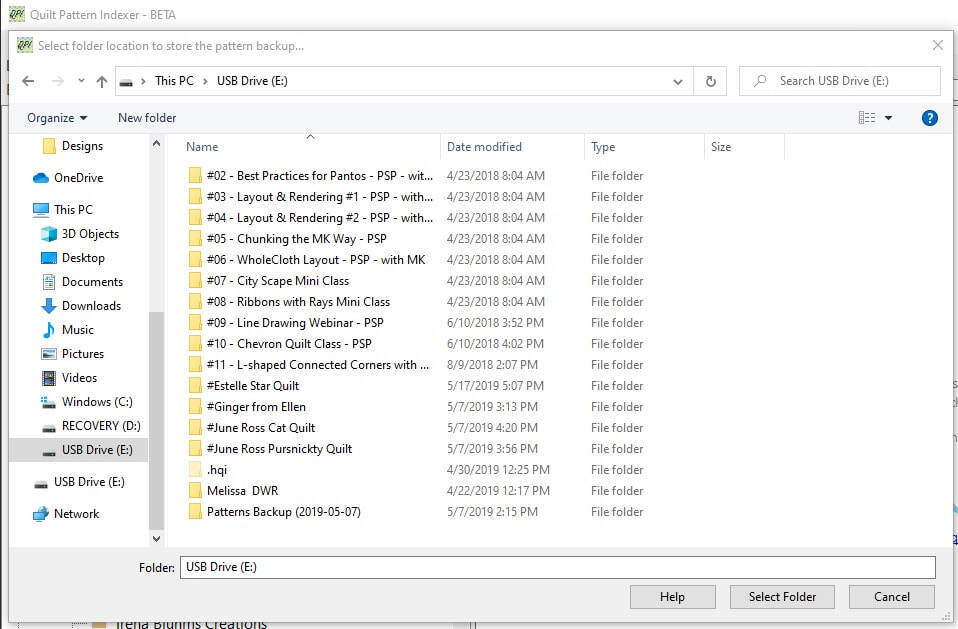
Restoring is manual: copy the design folders to the new computer with File Explorer, then use Import Keywords on the keywords.qpi.json file.
Backups are for your own recovery or moving to a new PC. Sharing purchased designs with others is illegal.
↑ Back to topReset Designs Folder
If you use #Purchased_Patterns, C:\Designs should hold only the standard Handi Quilter designs. Reset Designs Folder helps you get back to that:
- MKDI renames your current folder to
C:\Designs before QPI reset, so nothing is lost. - It creates a fresh, empty
C:\Designs. - Download and reinstall the Pro-Stitcher software yourself; it restores the default designs. (Version 516 or later is recommended.)
- Look through the old folder and move any designs you want to keep into
#Purchased_Patterns. - Use File > Refresh Tree when you're done.
Refresh Tree
MKDI watches the folders that existed when it started. If you add folders while it's running, or move things with File Explorer, use File > Refresh Tree (or restart MKDI) to see the changes.
↑ Back to topKeywords menu
Keyword tools live in the Keywords menu and in the right-click menus for designs and folders.
MKDI comes with MK's default keyword set. Reset deletes all keywords; Restore Defaults brings back MK's keywords. Applying additional keyword files only adds keywords and never deletes existing ones. MK's keywords cover many purchased designs you may not own yet; they'll apply automatically if you ever add those designs.
Assign keywords one design at a time, to a multi-selected group, or with the Manage Keywords window. Even with no keywords, search still matches file names.
Importing and exporting keywords
Keywords are stored in hidden Windows data folders. To back them up, share them or move them to another computer, use Export Keywords, which creates a .qpi.json file.
Import Keywords adds the file's keyword information, even for designs that aren't on that computer yet. When the design shows up in a watched folder, its keywords apply automatically.
Sync with a USB stick
Sync is the quick way to keep keywords matched between two devices, for example your machine's tablet and the PC where you run Pro-Stitcher Simulation. If your embroidery machine runs Windows, you may be able to run MKDI on it too.
- Plug in a USB stick.
- Select the USB stick in the left pane. MKDI shows any sync or backup files on it and when they were written.
- Choose one of three options:
- Create Backup – saves a point-in-time copy of your keywords (one per day).
- Sync To – copies new keyword information to the USB stick.
- Sync From – copies new keyword information from the USB stick into MKDI.
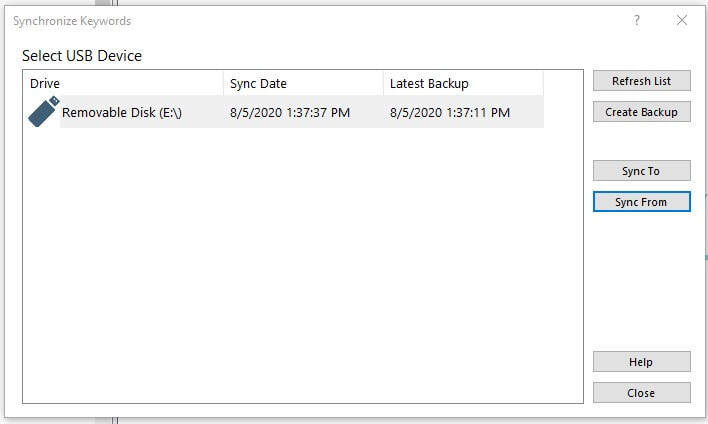
Only keyword information is copied, never designs. To copy designs between devices, use Backup Patterns.
Managing keywords for many designs
Select a keyword under Keywords in the left pane to see every design tagged with it. A design's preview window shows its keywords separated by spaces.
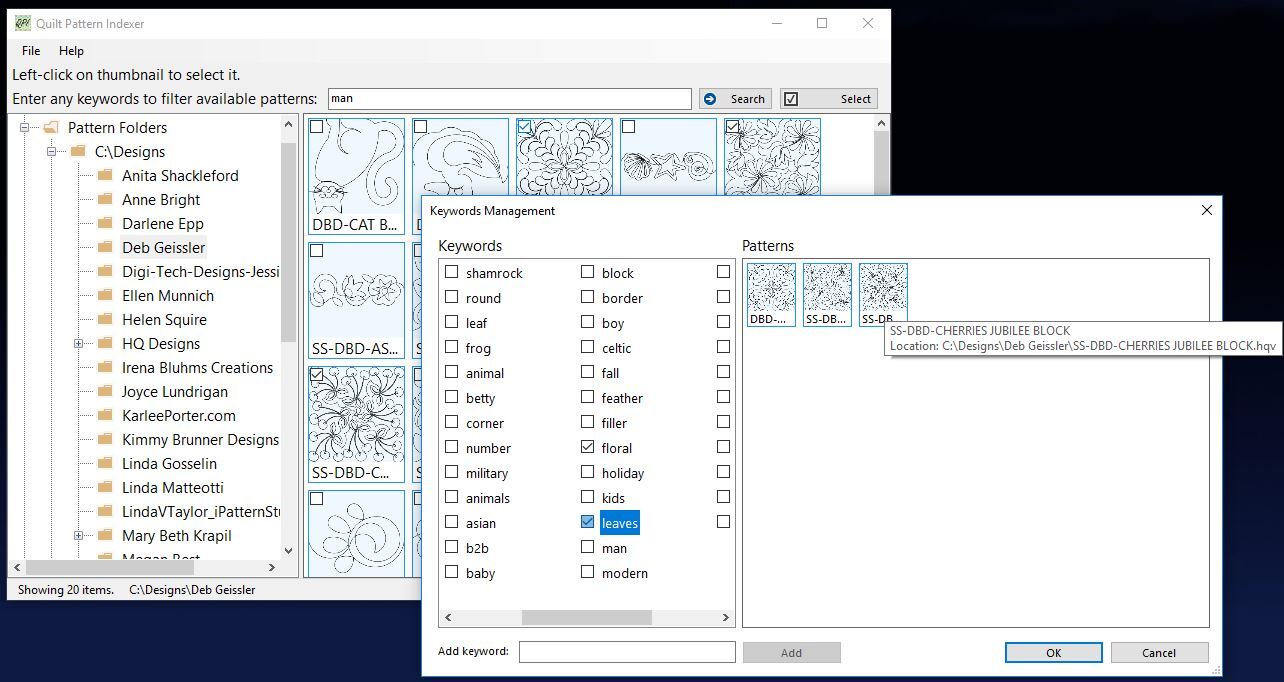
To tag many designs at once, switch to Multi-select with the Select button, check the designs, then right-click and choose Manage Keywords. Add or remove keywords on the left side of the window; they apply to every selected design. Hover over the small thumbnails on the right for file details.
Hash vs. file name
MKDI attaches keywords and notes to a design's hash, a large number calculated from the file's contents, not to its name. So a copied and renamed design keeps its keywords, and two different designs that happen to share a name (“Small Block.hqf”) are never confused.
This is also why you may see a design more than once, for example in Favorites: hover over each copy and the tooltip shows the different folders they're stored in.
↑ Back to topSettings
Open File > Settings to change how MKDI works.
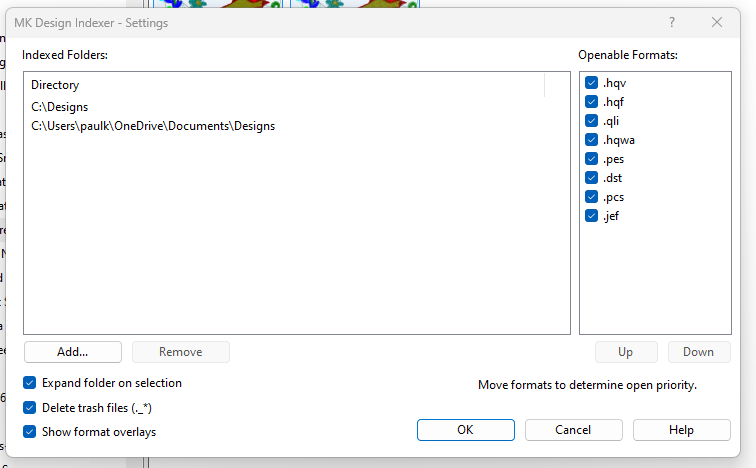
| Setting | What it does |
|---|---|
| Indexed folders | The folders MKDI searches, including all their sub-folders. Add only what you need: choosing all of C:\ makes MKDI scan the whole computer at every start. Removing a folder keeps its keywords; add it back and they return. Folders on USB sticks or external drives work but can be slow. |
| Show all folders | Shows folders even when they hold nothing MKDI can open. On by default. |
| Expand folder on selection | Opens a folder's sub-folders automatically when you select it. On by default. |
Delete trash files (._*) | Removes hidden Mac system files that get copied along with designs and would otherwise show as broken designs. Turn off to manage them yourself. |
| Show format overlays | Shows a small label on each thumbnail with the file's format. |
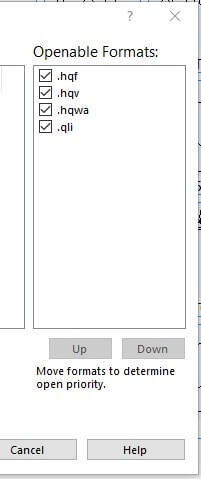
| Openable formats (open priority) | Ranks file formats. Open Pattern Zip saves the highest-ranked format available for each design. Select a format and use Up and Down to reorder; for example, move .qli to the top if that's your main format. |
FAQ
I can't see any designs in MKDI
MKDI looks in C:\Designs and Documents\Designs by default. Pro-Stitcher installs its free designs on the machine's tablet; if you run MKDI on another PC, those designs must be copied or installed there too. If your designs are somewhere else, including all embroidery designs, add that folder in Settings.
Some of my designs don't show up
Make sure the files are unzipped into a folder MKDI watches and aren't encrypted. Quilting formats HQF, HQV and QLI are supported. Then use Refresh Tree or restart MKDI.
Where is the best place to save my designs?
Use Create Purchased Folder. Your designs live safely in Documents\#Purchased_Patterns but also appear at the top of C:\Designs. The “#” keeps it at the top of the list.
My C:\Designs folder is a mess. What can I do?
Use Reset Designs Folder. It sets your old folder aside, gives you a clean start, and lets you move back only what you want.
Can I install MKDI on more than one computer?
Yes. One license covers one user on all of their PCs. Run your licensed download on each computer.
How do I update to the latest version?
Download the latest installer and run it over your current version. Settings and keywords are kept.
What is a “dot” release?
Your purchase includes dot releases, such as 2.0 to 2.04 to 2.09: bug fixes and small improvements that keep MKDI running well. Our goal is to keep MKDI simple, focused and affordable, so you have more money for quilting.
Words we use interchangeably
Folder = directory · Pattern = design · MK = Melissa
Troubleshooting
Work through these in order:
- Is MKDI installed? Download and run the installer from the product page.
- Won't open at all? Smart App Control may be blocking it. See the fix.
- Stops at the title window? Your 14-day trial has ended. Buy a license, then install the licensed download.
- No designs? Make sure they're on this computer, and add their top-level folder in Settings.
- Still stuck? See Getting help.
Version history
| Version | Highlights |
|---|---|
| 2.09a (2026) | One version for quilting and embroidery; embroidery support included at no extra cost. Installer updated for Snapdragon (Windows on ARM) PCs. |
| 2.04 | Renamed from QPI to MK Design Indexer. Embroidery design support with color counts. Pre-licensed downloads replace the Activator. Faster processing, thumbnails-per-row slider, scaling improvements and many bug fixes. |
| 1.5 (Aug 2020) | Search for designs without keywords. Create Purchased Folder and Open Pattern Zip. Find Duplicates with delete. Regenerate, flip and rotate thumbnails. Print settings. Move To and Open in Explorer. Keywords menu with Sync. Default MK keywords. Reset Designs Folder. Long-path handling, automatic config backup and removal of Mac ._ files. |
Getting help
- Check this manual, especially the FAQ and Troubleshooting.
- Search the MKDI Community group on Facebook. Someone has likely asked already. Join the group.
- Email us at support@mkquilts.com or call 727-935-1739.
- Book a live support session and we'll connect to your computer. Schedule a time.